TL;DR: eARC, refresh rate, and passthrough are three of the most commonly misunderstood specs in home theater setup. Each affects a specific part of your audio or video experience — and only matters if the rest of your equipment supports it.
Home theater marketing language has a way of making every spec sound essential. In practice, eARC, refresh rate, and passthrough are genuinely important — but only in specific configurations. Here's what each one actually does.
eARC: What It Is and When It Matters
eARC stands for Enhanced Audio Return Channel. It's a feature built into HDMI 2.1 ports that allows high-quality audio to travel from your TV back to your soundbar or AV receiver — without needing a separate optical cable.
The 'enhanced' part is what matters. Standard ARC (Audio Return Channel) can only carry compressed audio formats like Dolby Digital 5.1. eARC carries uncompressed and lossless formats — Dolby TrueHD, DTS-HD Master Audio, and Dolby Atmos object-based audio — which are the formats used on Blu-ray and in high-quality streaming. If your soundbar or receiver supports Dolby Atmos and your TV is streaming Atmos content but you're using a standard ARC or optical connection, you may not be hearing the full quality the source material offers.
Q: Do I need eARC if I already have Dolby Atmos?
It depends on how Atmos is reaching your soundbar. If your content source (a streaming device, Blu-ray player, or game console) is connected directly to your soundbar or receiver via HDMI, eARC may not be relevant — the audio is bypassing the TV entirely. eARC matters when your TV is in the audio signal chain between the source and your sound system.
Refresh Rate: What the Numbers Mean in Practice
Refresh rate — measured in Hz — is how many times per second your TV refreshes the image on screen. A 60Hz panel refreshes 60 times per second; a 120Hz panel refreshes 120 times. The practical difference depends on what you're watching.
For standard film and TV content, which is typically shot at 24 frames per second (or 30fps for broadcast), refresh rate has minimal visible impact unless the TV is applying motion processing. For sports or gaming — content with rapid movement — a higher native refresh rate reduces motion blur and improves clarity. For gaming specifically, a 120Hz panel can display up to 120 frames per second, which matters for console and PC games designed to run at that frame rate.
| Content Type | Meaningful Refresh Rate | What You'll Actually Notice |
|---|---|---|
| Film (24fps) | 60Hz sufficient | Little visible difference at 120Hz native |
| Live sports | 120Hz beneficial | Sharper motion in fast play |
| Gaming (PS5/Xbox) | 120Hz recommended | Smoother gameplay at 120fps titles |
| Streaming video | 60Hz sufficient | Higher Hz adds motion processing risk |
Q: What is 'motion smoothing' and should I turn it off?
Motion smoothing (called various names by different manufacturers — TruMotion, MotionFlow, Auto Motion Plus) is a processing mode that artificially inserts interpolated frames to make 24fps content appear to move more smoothly. Most cinematographers and directors dislike the result, describing it as making films look like cheap soap operas. The UltraHD Alliance has advocated for standardized 'filmmaker mode' settings that disable this processing — many modern TVs now include this option in their picture presets.
Passthrough: HDMI and Audio Passthrough Explained
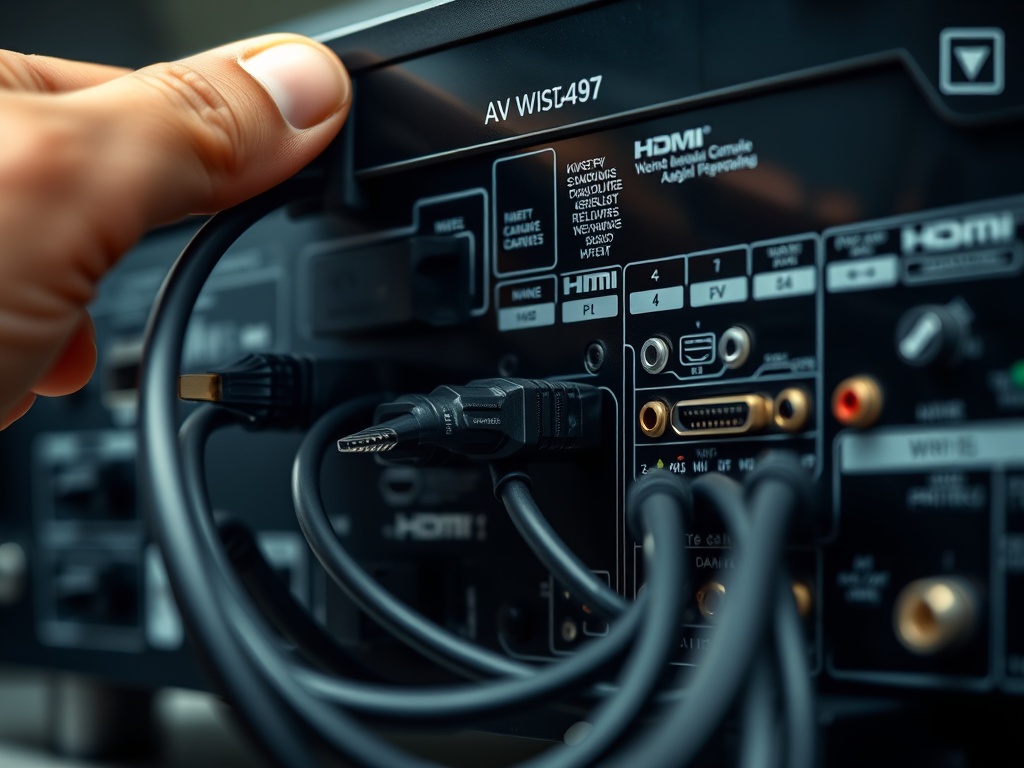
Passthrough refers to a device receiving a signal and forwarding it to the next device without processing or converting it. In home theater setups, there are two common types: HDMI passthrough and audio passthrough.
HDMI passthrough allows an AV receiver to accept an HDMI input and pass it on to the TV without downgrading the signal. This matters when your receiver is older and doesn't support the latest HDMI standards — it may not be able to pass 4K HDR or 8K signals through to your TV correctly, causing the TV to display a lower resolution or a degraded image.
Audio passthrough means a device receives an audio signal and sends it on to another device rather than decoding it internally. A streaming device, for example, might receive a Dolby Atmos stream and pass it through to your soundbar for decoding rather than decoding it itself — which can affect audio quality depending on which device's decoder is better.
Q: How do I know if my receiver is limiting my picture quality?
Check your receiver's HDMI version. HDMI 2.0 supports 4K at 60Hz with HDR; HDMI 2.1 supports 4K at 120Hz and 8K. If your receiver has HDMI 2.0 ports and you're connecting a 4K/120Hz-capable gaming console, the receiver will cap the signal at 60Hz before it reaches your TV. In that case, connecting the console directly to the TV (and using eARC for audio back to the receiver) avoids the bottleneck.
Putting It Together: Which Spec Actually Affects Your Setup
The honest answer is that all three specs — eARC, refresh rate, and passthrough — only matter when the rest of your system supports them. A 120Hz TV paired with a 60fps-capped streaming device doesn't benefit from the panel's high refresh rate. eARC on a soundbar that only supports Dolby Digital 5.1 doesn't unlock better audio.
The connection between home viewing tech and content availability is something worth tracking if you're deciding when and how to upgrade. The economic incentives that shape content availability — including how theatrical releases translate to streaming — are explored in The Economics of Theatrical Windows in the Streaming Era, which explains why the same content might look and sound different depending on which platform delivers it.
For context on how franchise content is designed for exactly these kinds of high-quality home viewing experiences, The Business Logic Behind Spinoffs, Reboots, and Franchise TV covers how streaming platforms think about viewer retention in home environments.
The Setup Recommendation
Before upgrading any single component, map your signal chain: source device → receiver or soundbar → TV. Identify the oldest or lowest-spec link in that chain. That's almost always where your biggest picture or audio improvement will come from — not from buying a newer component when the existing bottleneck remains in place.
Identify your signal chain bottleneck first — then decide what to upgrade.