Router problems often come from placement, outdated equipment, weak security settings, crowded channels, or buying a router that does not match the home layout. Fix coverage and lag by checking the environment first, then changing settings or hardware only when the real bottleneck is clear.
TL;DR: Put the router in a central open spot, update firmware, secure the network, separate coverage problems from internet-plan limits, and consider mesh only when one router cannot reasonably cover the space.
Mistake 1: Hiding the router in the worst possible place
Routers are often placed where the internet cable enters the home: a corner, closet, cabinet, basement, or behind a TV. That is convenient for wiring but bad for signal. Wi-Fi weakens when it passes through walls, metal, appliances, mirrors, brick, and floors.
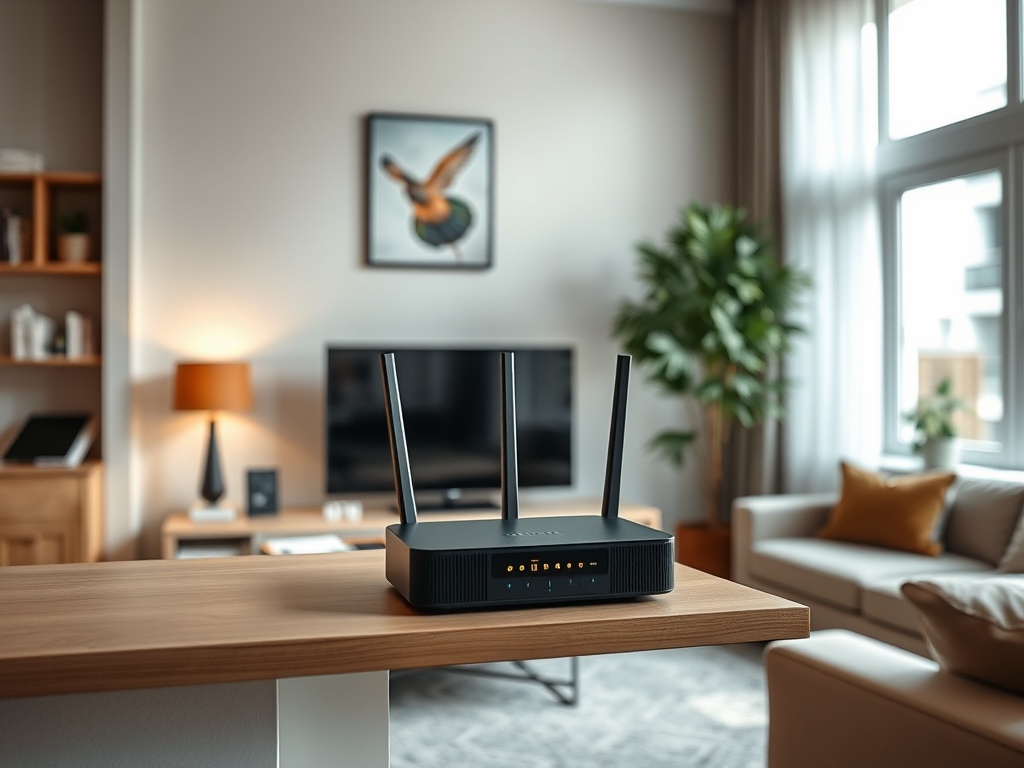
Move the router to a central, elevated, open location when possible. Keep it away from microwaves, dense furniture, aquariums, and large metal objects. A small placement change can outperform a new router if the old location was poor.
The FTC home Wi-Fi advice emphasizes basic home-network security steps, and placement pairs with security because the network is part of the home infrastructure, not just a box with blinking lights.
Mistake 2: Buying speed you cannot actually use
Router marketing often highlights very large speed numbers. Those numbers are not the same as your internet plan, real room-to-room performance, or the speed a phone receives through two walls. A router cannot make a slow internet plan faster, and a faster plan cannot fix weak Wi-Fi coverage by itself.
Before upgrading, test wired speed near the modem or router, then test Wi-Fi in the problem rooms. If wired speed is fine but Wi-Fi drops in distant rooms, coverage is the issue. If wired speed is also poor, the problem may be the internet plan, modem, line, or service provider.
Mistake 3: Ignoring firmware and end-of-support devices
Routers need updates just like computers and phones. Firmware updates can patch vulnerabilities, improve stability, and fix device compatibility problems. Log in to the router’s admin page or app and check update status. If the device no longer receives updates, replacement may be safer than repeated troubleshooting.
CISA’s CISA home Wi-Fi module recommends essential router privacy and cybersecurity steps for home users. That guidance supports a cautious approach: update firmware, change weak defaults, and do not expose admin controls unnecessarily.
Mistake 4: Leaving default names and passwords unchanged
A router may ship with default admin credentials or a printed Wi-Fi password. Change the admin password first. Then set a strong Wi-Fi password and use current encryption options supported by your devices. Avoid using your address, family name, business name, or phone number in the network name.
Do not confuse the Wi-Fi password with the router admin password. The Wi-Fi password lets devices join the network. The admin password controls settings. Both matter, but the admin password is especially sensitive.
Mistake 5: Treating every lag problem as coverage
Lag can come from weak signal, but it can also come from overloaded devices, cloud backups, video calls, old computers, game servers, or a busy internet plan. If one laptop lags but phones work fine in the same room, the router may not be the only issue. If every device slows down during evening streaming, bandwidth demand may be the problem.
If your main frustration is a computer that feels slow even near the router, review our guide on how to speed up a slow computer safely. If pages load slowly only on your website, CDN and hosting settings may matter more, and the content delivery networks glossary can help.
Mistake 6: Choosing mesh without understanding layout
Mesh Wi-Fi can help large homes, thick walls, or awkward floor plans, but it is not automatic magic. Mesh nodes still need good placement and a strong connection to each other. If a node sits in the same dead zone as the phone, it may repeat a weak signal.
Place nodes halfway between the main router and the problem area, not at the farthest point. For heavy workstations, gaming consoles, or streaming setups, wired Ethernet backhaul can make mesh more stable if the system supports it.
Mistake 7: Forgetting device limits
Older phones, laptops, smart TVs, and printers may not support newer Wi-Fi standards or security modes. A new router can improve the network while one old device still performs poorly. Keep this in mind before changing every router setting to support a single outdated device.
| Symptom | Likely cause | First fix |
|---|---|---|
| Strong speed near router, weak in bedrooms | Coverage or obstruction | Move router or add a well-placed node |
| Slow on every device, even wired | Internet plan or service issue | Test modem and contact provider |
| One device drops often | Device adapter or software issue | Update device and forget/rejoin network |
| Browser slow but apps fine | Browser, DNS, or website issue | Test another browser and check extensions |
| Frequent security warnings | Router or device settings | Update firmware and review encryption |
A practical router buying checklist
Before buying, write down square footage, number of floors, wall materials, internet plan speed, device count, wired devices, and whether you need parental controls, guest networks, or advanced security features. Then compare routers based on real needs instead of the largest printed speed number.
A smaller apartment may need one reliable router. A large home may need mesh. A home office may need wired connections. A household with many smart devices may need better device handling and security controls.
Stronger coverage starts with better decisions
Weak Wi-Fi is frustrating, but the fix is usually systematic. Improve placement, update firmware, secure the network, test wired versus wireless speed, and replace hardware only when it clearly does not match the space. That approach prevents wasted upgrades and gives every device a better chance of staying connected.